
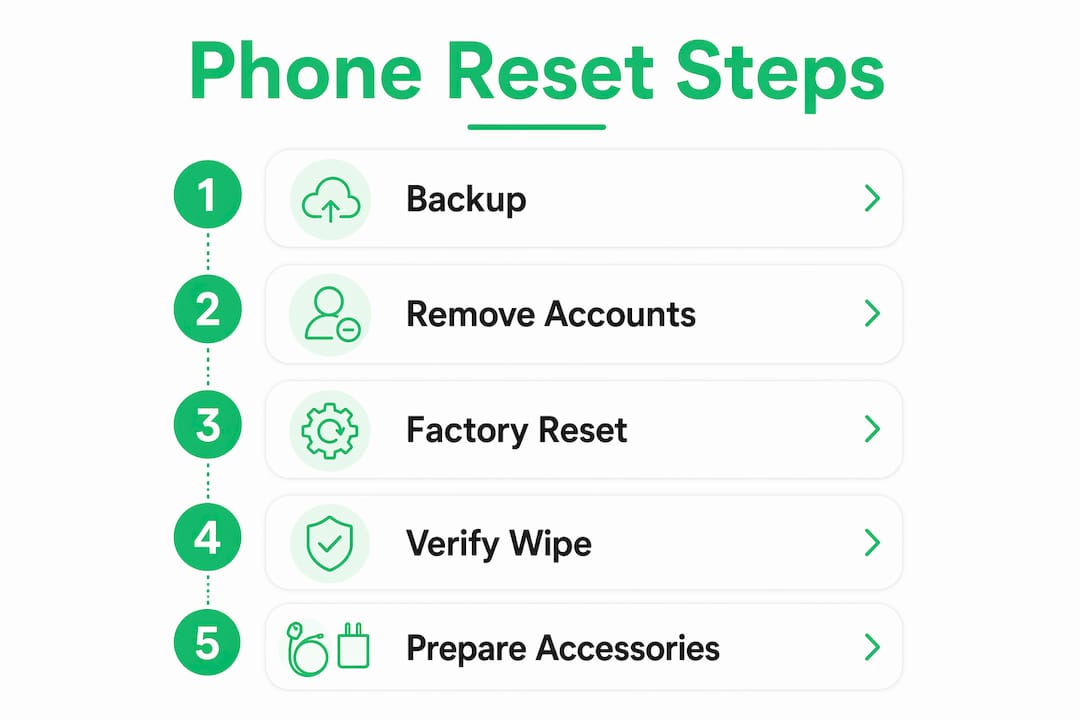
Before you hand over your phone, do these five things: back up your data, sign out of all accounts, remove your SIM and microSD card, perform a factory reset, and verify the device boots to the setup screen.
The short version: Skipping any one of these steps can either lock the buyer out of the phone entirely (thanks to Activation Lock or Factory Reset Protection) or leave your personal data recoverable by anyone with basic tools. The whole process is free and typically completes quickly, not counting backup time.
Your pre-sale checklist at a glance:
- Back up contacts, photos, messages, and app data
- Sign out of Apple ID / Google Account and disable Find My / Find My Device
- Remove your SIM card and any microSD card
- Perform a factory reset (platform-specific steps below)
- Confirm the device boots to the Hello or Welcome setup screen
Table of Contents
- What should you back up before wiping your phone?
- How do you remove accounts and disable Activation Lock or FRP?
- Remove your SIM card, microSD, and physical accessories
- How to erase an iPhone step by step
- How to factory reset Android phones before selling
- Is a factory reset actually enough to protect your data?
- How do you verify the wipe worked before handing over the phone?
- What to do if something goes wrong: Activation Lock, FRP, and forgotten passwords
- Key Takeaways
- What peer-to-peer sellers actually do at the handoff
- Ready to sell? List your wiped phone on Marketplaceapp
- Official support pages and references
What should you back up before wiping your phone?
Losing photos or contacts during a reset is avoidable, and the FTC recommends backing up before doing anything else. The question is what actually needs saving.
Contacts, photos, and messages are the obvious ones. Less obvious: two-factor authentication (2FA) app data. If you use Google Authenticator, Authy, or Microsoft Authenticator, those codes do not automatically transfer. Export or migrate them before you wipe.
For iPhones, iCloud Backup covers most of this automatically. Go to Settings → [your name] → iCloud → iCloud Backup → Back Up Now. For a local backup, connect to a Mac or PC and use Finder or iTunes. For Android, go to Settings → Google → Backup → Back up now. Samsung users can also use Smart Switch for a full local backup to a PC.
Verify before you wipe: Open your cloud backup settings and confirm the backup completed with today's date and time. A backup that shows "3 weeks ago" is not current.
Pro Tip: For 2FA apps, check whether your authenticator supports encrypted cloud backup (Authy does; Google Authenticator added it in 2023). If yours does not, manually note your backup codes for every account before resetting.
How do you remove accounts and disable Activation Lock or FRP?
This is the step most sellers skip, and it causes the most buyer disputes. Leaving your Apple ID or Google Account on the device triggers Activation Lock (iPhone) or Factory Reset Protection (Android), which prevents the buyer from completing setup without your credentials.
For iPhone:
- Open Settings → [your name].
- Scroll down and tap Sign Out.
- Enter your Apple ID password and tap Turn Off to disable Find My.
- Choose what data to keep on the device (it will be erased anyway), then tap Sign Out to confirm.
For Android (stock):
- Go to Settings → Accounts.
- Tap each account and select Remove account.
- Go to Settings → Security → Find My Device and turn it off.
For Samsung Galaxy:
- Go to Settings → Accounts and backup → Manage accounts.
- Remove your Samsung account, Google account, and any other linked accounts.
- Go to Settings → Biometrics and security → Find My Mobile and turn it off.
Verification: After signing out, go back to Settings and confirm no accounts appear under the Accounts section. On iPhone, the top of Settings should show no name or Apple ID.
Remove your SIM card, microSD, and physical accessories
A factory reset does not touch physical storage. Your SIM card holds carrier information and sometimes contacts. A microSD card can hold photos, downloads, and app data that survives the reset entirely.
Pop out the SIM tray before you reset. If you use a microSD card, either remove it or format it separately through Settings → Storage → Format SD card before the reset. Do not assume the reset handles it.
What about accessories? Include the original charger and cable if you have them. Buyers appreciate it, and it often helps your listing stand out. Keep your case, screen protector, and any personal accessories for yourself.
How to erase an iPhone step by step
Apple's official process is straightforward, but the order matters. Sign out of your Apple ID before you erase, not after, or Activation Lock stays active.
- Back up via iCloud or your computer.
- Go to Settings → [your name] → Sign Out and complete the sign-out (this disables Find My).
- Go to Settings → General → Transfer or Reset iPhone → Erase All Content and Settings.
- Enter your passcode if prompted, then tap Continue.
- The phone will erase and restart. This process usually takes a few minutes.
The official erase process also removes Apple Pay cards, iMessage registration, and FaceTime. You do not need to manually turn those off beforehand, but it does not hurt.
Pro Tip: After the erase completes, visit icloud.com/find on a browser and confirm the device no longer appears in your device list. That is the definitive proof that Activation Lock is off.
How to factory reset Android phones before selling
Stock Android follows a consistent path: Settings → System → Reset options → Erase all data (factory reset) → Erase all data. You will be prompted for your PIN. The device reboots to the setup wizard when finished.
Charge your device before starting the reset, which can take some time on certain models.
OEM differences matter. Samsung, Pixel, and other manufacturers each have slightly different menu paths and a few unique considerations.
| Platform | Reset path | Activation lock behavior | Encrypted by default |
|---|---|---|---|
| iPhone | Settings → General → Transfer or Reset → Erase All Content | Activation Lock stays on unless Apple ID removed first | Yes (hardware-level) |
| Stock Android (10+) | Settings → System → Reset options → Erase all data | FRP requires Google Account credentials if not removed first | Yes |
| Samsung Galaxy | Settings → General management → Reset → Factory data reset | FRP + Samsung account lock if accounts not removed | Yes (Android 10+) |
| Google Pixel | Settings → System → Reset options → Erase all data | FRP; Titan M2 chip cryptographically wipes credentials | Yes |
For Pixel phones specifically, Google recommends waiting 24 hours after a recent Google Account password change before resetting. FRP uses the previous password for a 24-hour window, which can lock the buyer out even when you did everything right.
Samsung sellers: After the reset, boot into Download Mode (Volume Down + Power) and check the Knox warranty status on screen. "Knox Warranty Void: 0x0" means the device was never rooted. If it shows 0x1, disclose that to the buyer before the sale.
Is a factory reset actually enough to protect your data?
For most people selling a phone bought in the last few years, yes. For anyone selling an older device, the answer is more complicated.
Security experts note that a factory reset clears the file system index but does not overwrite the underlying storage. On a modern, fully encrypted phone, that distinction does not matter. The encryption key is destroyed during the reset, making the remaining data mathematically unreadable even with forensic tools.
The problem is older hardware. Android 7 and earlier did not encrypt by default. Some Android 8 and 9 devices shipped with encryption optional. On those devices, a reset leaves raw data on the storage cells that consumer-grade recovery tools can reconstruct.
| Device type | Factory reset sufficient? | Recommended extra step |
|---|---|---|
| iPhone (any model with iOS 8+) | Yes | None needed |
| Android 10+ | Yes | None needed |
| Android 8–9 (check encryption status) | Sometimes | Enable encryption first, then reset |
| Android 7 and earlier | No | Encrypt first, then double-wipe |
The double-wipe method for older Android devices: Enable full-disk encryption in Settings → Security → Encryption. Once complete, perform the factory reset. Then fill the storage with junk (download large files or take videos until storage is full), and reset again. This overwrites the raw storage cells.
Pro Tip: On Android, go to Settings → Security → Encryption and confirm it shows "Encrypted" before you reset. If it shows anything else on an older device, enable it and let it run overnight before proceeding.
- Modern iPhones use hardware-level encryption that activates at first setup.
- Android 10+ devices encrypt by default; no manual step needed.
- Older Android devices need manual encryption enabled before the reset to be safe.
How do you verify the wipe worked before handing over the phone?
Power the device on after the reset. It should boot directly to the language selection or Hello/Welcome setup screen with no prompts for a passcode, Apple ID, or Google Account. That screen is your confirmation.
What a clean reset looks like: The buyer should be able to complete setup using their own accounts with no prompts for your credentials, no saved payment cards, and no stored Wi-Fi passwords.
Run through this quick check before the handoff:
- Device boots to setup screen (Hello on iPhone, language selection on Android)
- No account sign-in prompts for previous owner credentials
- No saved payment methods or banking apps visible
- Settings → Accounts shows empty (Android) or no Apple ID (iPhone)
Physical prep matters too. Clean the screen and body. Note the battery health honestly (iPhone: Settings → Battery → Battery Health & Charging; Android: varies by OEM). If the device had a screen repair or any hardware work done, say so upfront. Buyers who feel informed are buyers who leave good reviews.
Pro Tip: At the meetup, hand the buyer the phone at the setup screen and let them enter their own Apple ID or Google Account. Watching it activate cleanly in front of them eliminates any dispute about whether the device is locked.

What to do if something goes wrong: Activation Lock, FRP, and forgotten passwords
The most common problem: you already reset the phone and the buyer reports it is asking for your credentials.
- For iPhone Activation Lock: Log in to icloud.com, go to Find My, select the device, and click Remove This Device. The buyer can then complete setup. You do not need the physical phone to do this.
- For Android FRP: Log in to your Google Account at myaccount.google.com, go to Security → Your devices, find the device, and sign it out remotely. The buyer will need to wait a few minutes before attempting setup again.
- Forgot your Google Account password: Use Google's account recovery at accounts.google.com/signin/recovery. FRP requires your account credentials to release the lock, so recovery is the only legitimate path.
Warning: Unofficial FRP bypass tools and third-party unlock services are risky. Many are scams, some install malware, and none of them are sanctioned by Google or Apple. If you are the legitimate owner, account recovery through official portals is always the right move.
If you changed your Google Account password recently and the buyer is hitting FRP, the 24-hour window mentioned above applies. Ask the buyer to wait and try again the next day before escalating.
Key Takeaways
A factory reset before selling protects your data and ensures the buyer can activate the device, but only when you sign out of accounts first and verify encryption on older phones.
| Point | Details |
|---|---|
| Back up before anything else | Confirm the backup completed with today's date before wiping. |
| Remove accounts first | Sign out of Apple ID or Google Account before resetting to prevent Activation Lock or FRP. |
| Physical items need manual removal | SIM cards and microSD cards are not erased by a factory reset. |
| Older devices need extra steps | Android 7 and earlier require encryption enabled before resetting for data to be unrecoverable. |
| Verify with the setup screen | A clean boot to Hello or Welcome confirms the wipe worked and the device is ready for a new owner. |
| List it on Marketplaceapp | After wiping, Marketplaceapp makes it easy to list your phone locally with verified buyers nearby. |
These steps are free and typically take under an hour, not counting backup time.
What peer-to-peer sellers actually do at the handoff
Most guides stop at "verify the reset." Real local trades have a few extra moments that prevent disputes.
When you meet the buyer, hand them the phone at the setup screen and let them run through activation themselves. Do not do it for them. That single gesture proves the device is clean, unlocked, and ready. If they want to verify the IMEI, go to Settings → General → About (iPhone) or dial *#06# (Android). Most buyers will not ask, but having the answer ready builds trust immediately.
Two things sellers consistently forget: authenticator apps and streaming service logins. Even after a full reset, a buyer might find a device pre-logged into a service if the seller signed back in during the verification step. Stay off the device after the reset. Also, if you used the phone for work with an MDM (mobile device management) profile, confirm with your IT department that the profile was removed before the sale. A lingering MDM profile can restrict what the buyer can do with the device.
For sellers listing used electronics, the same transparency principles that apply to selling watches online apply here: honest condition notes, clear photos, and disclosed repairs lead to faster sales and fewer post-sale messages.
Ready to sell? List your wiped phone on Marketplaceapp
Once your phone is wiped and verified, the next step is finding a local buyer who can pick it up today.
Marketplaceapp connects you with verified local buyers through secure messaging, categorized listings, and seller ratings that build trust before the meetup. Listing a used phone takes a few minutes: add clear photos (include the setup screen to show it is clean), note the battery health, and describe any cosmetic wear honestly. Local transactions mean no shipping risk, no waiting, and payment handled securely through the platform. Buyers on Marketplaceapp can see your seller rating and message you directly, which cuts out the back-and-forth of less structured platforms.
Create your listing now and turn that freshly wiped phone into cash today.
Official support pages and references
| Resource | Use it for |
|---|---|
| Apple Support: What to do before you sell or give away your iPhone | iPhone-specific pre-sale steps and Activation Lock guidance |
| Apple Support: Erase iPhone | Step-by-step erase instructions and what gets removed |
| Google Android Help: Factory reset | Stock Android reset steps and FRP explanation |
| Google Pixel: Factory reset | Pixel-specific reset path and 24-hour password change note |
| FTC: Remove personal information before selling | Authoritative consumer guidance on backup and account removal |
| Microsoft: Reset your PC | Windows device wipe reference for sellers with multiple devices |