To toggle push notifications right now, open your device Settings → Notifications → [app name] and flip Allow Notifications on or off. On iPhone, that path is Settings > Notifications > select the app. On Android, go to Settings > Notifications > App notifications, or long-press the app icon and tap App info.
Three fastest fixes when notifications stop working: (1) confirm the OS-level permission is on, since in-app toggles do nothing if the system switch is off; (2) check battery optimization or background activity limits; (3) open the app itself and verify its own notification preferences are enabled.
Table of Contents
- 1. How to turn push notifications on or off on iPhone
- 2. How to turn push notifications on or off on Android
- 3. What each notification setting actually does across platforms
- 4. Troubleshooting checklist: if you stopped getting push notifications
- 5. Which apps should actually have notifications turned on?
- 6. How to manage push notifications in the MarketplaceAnywhere app
- Key Takeaways
- Why granular notification control matters more than most people realize
- Find and manage your MarketplaceAnywhere alerts
- Further reading and official sources
1. How to turn push notifications on or off on iPhone
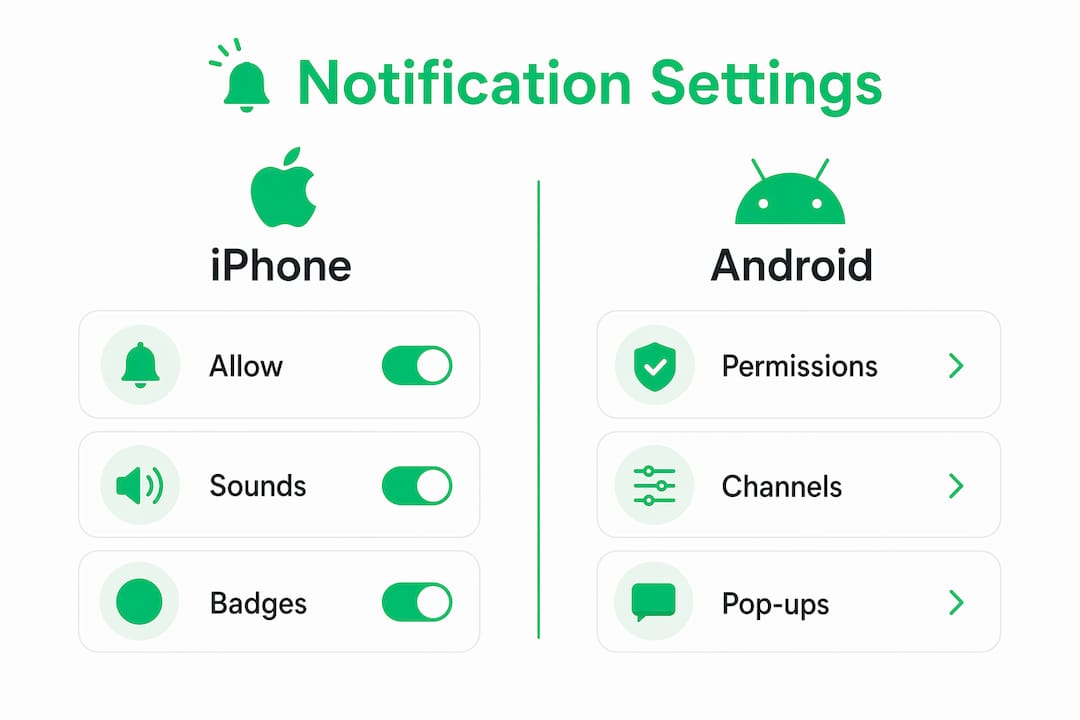
The one-line answer: Settings > Notifications > [app] > Allow Notifications, then choose where they appear and whether they make sound.
Here is the full step sequence:
- Open the Settings app.
- Tap Notifications.
- Scroll to the app you want to adjust and tap it.
- Toggle Allow Notifications on or off.
- Under Alerts, choose where notifications appear: Lock Screen, Notification Center, and/or Banners.
- Toggle Sounds and Badges as needed.
- Tap Show Previews to control whether message content appears on the lock screen.
To schedule a notification summary, go to Settings > Notifications > Scheduled Summary, add apps, and pick a delivery time. This batches low-priority alerts so they arrive at once instead of interrupting you throughout the day.
Focus and Do Not Disturb work as an override layer. When a Focus mode is active, notifications from apps not on your allowed list are held or silenced entirely, regardless of per-app settings.
Pro Tip: Some apps expose their own sound list inside the app's settings. If you want a custom alert tone for a specific app, check the app's in-app preferences first before assuming you're limited to the system sound picker.
2. How to turn push notifications on or off on Android
On stock Android, go to Settings > Notifications > App notifications, find the app, and toggle it. The faster shortcut: long-press the app icon on your home screen, tap App info, then tap Notifications.
Inside the app's notification screen, you will see individual channels (also called categories). Each channel controls a specific type of alert, such as messages, promotions, or order updates. You can silence one channel while keeping another active. Tap a channel to adjust its importance level (Alerting vs. Silent), change the sound, toggle vibration, and set pop-up behavior.
Notification controls on Android vary noticeably by manufacturer. Samsung's One UI buries some options under a separate "Advanced settings" menu. Xiaomi's MIUI and HyperOS add an Autostart permission that must be enabled separately, or the app may never receive push in the background. OPPO's ColorOS has a similar "Protected apps" list.
Pro Tip: When the Settings menu looks different from the steps above, skip the search and use the long-press App info shortcut instead. It takes you directly to that app's notification controls on virtually every Android skin.
3. What each notification setting actually does across platforms
Notifications control where and how alerts appear, whether they make sound, and whether they show a badge count. Here is what each toggle does and where to find it.
| Setting | iPhone path | Android path | What it controls |
|---|---|---|---|
| Allow Notifications | Settings > Notifications > [app] | Settings > Notifications > App notifications | Master on/off switch |
| Alert style (Banners/Alerts) | Same screen, under Alerts | Per-channel importance level | Whether a banner pops up on screen |
| Lock Screen | Same screen | Per-channel importance | Visibility on lock screen |
| Sounds | Same screen, toggle Sounds | Per-channel, tap sound name | Audio alert on delivery |
| Badges | Same screen, toggle Badges | Not universal; varies by launcher | Red dot/count on app icon |
| Scheduled Summary | Settings > Notifications > Scheduled Summary | Not a native feature | Batches low-priority alerts at set times |
| Browser/shopping alerts | Chrome app > Settings > Notifications > Shopping | Chrome app > Settings > Notifications | Price-drop alerts and shopping tracking |
A few practical scenarios worth knowing: for urgent messages or order updates, enable sound and keep banners on. For promotional apps you still want to monitor, switch the importance to Silent so alerts arrive without interrupting you. For anything you check on your own schedule, add it to Scheduled Summary on iPhone or set the Android channel to Silent.
4. Troubleshooting checklist: if you stopped getting push notifications
Start here before reinstalling anything. Background activity limits are the most common cause of missing notifications on modern phones, especially on Xiaomi, OPPO, and other heavily skinned Android devices.
- Check OS-level permission. Go to Settings > Notifications > [app] and confirm Allow Notifications is on. If it is off, nothing else matters.
- Verify in-app notification toggles. Open the app, find its notification or preferences screen, and confirm each alert type is enabled.
- Disable battery optimization for the app. On Android: Settings > Apps > [app] > Battery > Unrestricted. On iPhone: this is less common, but check Settings > [app] > Background App Refresh.
- Check Focus or Do Not Disturb. On iPhone, swipe into Control Center and confirm no Focus mode is active, or go to Settings > Focus. On Android, check Settings > Sound > Do Not Disturb.
- Update or reinstall the app. An outdated app can lose its push token. Update first; reinstall only if updating does not fix it.
- Enable notification history (Android). If you suspect notifications are arriving but disappearing, go to Settings > Notifications > Notification history and turn it on. Note: notification history must be enabled before the fact — dismissed alerts are not recoverable if history was off.
- Reset notification settings (iPhone). Go to Settings > General > Transfer or Reset iPhone > Reset > Reset All Settings. This resets notification preferences without erasing data.
Pro Tip: On Xiaomi or OPPO phones, open the Security or Phone Manager app and look for Autostart or Protected apps. Add your app to the allowed list there. This single step fixes missing notifications more often than any other action on those devices.
5. Which apps should actually have notifications turned on?
Allow notifications for apps that send timely, actionable information you would act on within the hour. Mute the rest.
A simple rule: if missing the alert costs you something (a message, a delivery, a safety warning, a deal you wanted), keep it on. If it is just a nudge to open the app, silence it or route it to a scheduled summary.
Keep enabled: messaging apps, ride and delivery tracking, banking alerts, safety apps, and transactional alerts from marketplace apps like MarketplaceAnywhere (new messages, offers, order updates). For price-drop alerts on items you are actively tracking, enabling sound makes sense since timing matters.
Mute or set to silent: promotional blasts, social media like counts, news apps you check on your own, and any app that sends more than a handful of alerts per day without your direct action triggering them.
The four decision criteria worth running through: timeliness (does acting now matter?), personal relevance (did you ask for this?), frequency (will it interrupt you ten times a day?), and duplication (are you already getting this by email or SMS?).
Pro Tip: Use iPhone's Scheduled Summary or Android's notification channels to keep low-priority apps in your awareness without letting them interrupt your day. You stay informed; they stop burning your attention.
6. How to manage push notifications in the MarketplaceAnywhere app
Open your device Settings > Notifications > MarketplaceAnywhere and confirm the OS permission is on first. That is the master switch. Changes inside the app will not work until system permission is enabled.
Once the OS permission is confirmed, here is the recommended setup:
- Enable transactional alerts. New messages, offers received, and order updates should have sound on. These are time-sensitive.
- Set listing alerts to sound or summary. If you are tracking a specific item, like a used vehicle listing or an electronics deal, enable sound for new-listing alerts. If you have many saved searches, route listing alerts to a scheduled summary to avoid constant interruptions.
- Mute promotional notifications. Inside MarketplaceAnywhere, go to Profile > Preferences > Push notifications and toggle off any promotional or newsletter-style alerts you do not want.
- Re-request permission if it was denied. On iPhone, go to Settings > Notifications > MarketplaceAnywhere and toggle Allow Notifications back on. On Android, go to Settings > Apps > MarketplaceAnywhere > Notifications and re-enable. The app cannot re-prompt you automatically once you have denied permission.
Pro Tip: If MarketplaceAnywhere alerts are missing on Android, open your phone's Battery or Security settings and add MarketplaceAnywhere to the Autostart or unrestricted battery list. This is the fix that works when everything else looks correct.
Key Takeaways
The OS-level permission is the master switch for every app: fix it first, then work inward through battery settings, in-app toggles, and Focus modes.
| Point | Details |
|---|---|
| OS permission comes first | If system-level notifications are off, in-app toggles have no effect until you re-enable them. |
| Battery settings block Android alerts | Add the app to the unrestricted or Autostart list to prevent background restrictions from silencing push. |
| Focus and Do Not Disturb override everything | Check active Focus modes on iPhone or Do Not Disturb on Android before assuming the app is broken. |
| Silence low-value apps, keep actionable ones | Enable sound for messages, orders, and deal alerts; mute promotional and non-urgent apps. |
| Marketplaceapp transactional alerts | In MarketplaceAnywhere, enable messages and offer alerts; mute promotional ones via Profile > Preferences > Push notifications. |
Why granular notification control matters more than most people realize
The conventional advice is "just turn off what annoys you." That misses the real problem. Most people do not turn off individual apps. They either mute everything after hitting a breaking point, or they leave everything on and start ignoring their lock screen entirely. Both outcomes mean they miss the alerts that actually matter.
The smarter move is treating notification settings the way you would an inbox: deliberate, tiered, and reviewed occasionally. Marketplaceapp's approach with MarketplaceAnywhere reflects this. Transactional alerts (messages, offers, order updates) are on by default because they are time-sensitive. Promotional alerts are optional because they are not. That distinction is not about being polite to users. It is about making sure the alerts that drive real outcomes, completed sales, answered offers, caught deals, actually get seen.
Web push adds another wrinkle. Once a user blocks a site's push permission, the site cannot re-prompt. The user has to manually go into browser settings and re-enable it. That is a much higher recovery cost than a native app, where re-enabling takes two taps in Settings.
Find and manage your MarketplaceAnywhere alerts
MarketplaceAnywhere keeps transactional alerts lean by design. Messages, offers, and order updates are on by default. Promotional notifications are optional and easy to turn off. To adjust your preferences, open the app, go to Profile > Preferences > Push notifications, and toggle each category to match how you want to be notified.
If you need to re-enable device-level permission or troubleshoot missing alerts, visit MarketplaceAnywhere for direct support. Whether you are tracking a local deal or waiting on a buyer's message, the right alert settings mean you never miss what matters.
Further reading and official sources
The steps and troubleshooting paths in this article are drawn from official platform documentation. For the latest UI changes on your specific device, go directly to the source:
- Change notification settings on iPhone — Apple Support
- Change notification settings on iPhone (detailed guide) — Apple Support
- Control notifications on Android — Android Help
- Control price tracking and shopping alerts in Chrome — Google Support
- How to enable push notifications: all devices — Tencent Push
- Subscribe a user to push notifications — web.dev
- How to request push permissions responsibly — web.dev